| To access this settings screen, first click on the RSIGuard setup menu, then Settings. | 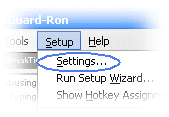 |
| Next click on the BreakTimer tab, and click on the "Manually" button to adjust BreakTimer settings manually. | 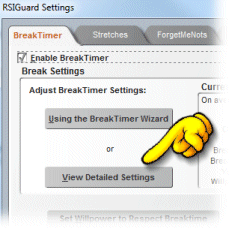 |
| Main
Help Page
Help on BreakTimer Setting up the BreakTimer for use
|
The Manually Adjust Break Schedule Settings window.
To access this settings screen, first click on the RSIGuard setup menu, then Settings. Next click on the BreakTimer tab, and click on the "Manually" button to adjust BreakTimer settings manually.
Note: As you adjust these 3 sliders, "Average length of breaks" and "Average Time Between Breaks" will adjust accordingly. These values reflect your average break, but actual time between breaks and actual length of breaks will be based on the kind of work you have been doing. If you spend a lot of time off the computer on a particular day, breaks will occur less frequently or even not at all. If you work very intensively, they will occur more frequently than the average. Postponing breaks will generally lead to longer breaks. |
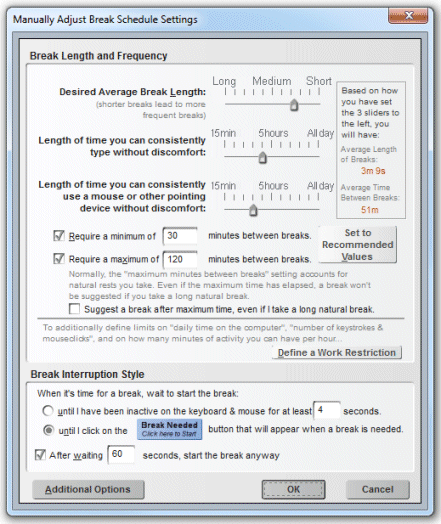 |
In addition to the strain-based reminders to take breaks, RSIGuard can limit your exposure to the computer in other ways using the Work Restriction feature. Click on the 'Define a Work Restriction Now' button if you want to define a work restriction.
|
The Break Interruption Style settings let you decide how RSIGuard starts breaks at break time. This very important setting can fundamentally change your experience with BreakTimer, so it is worth taking a moment to set it to match your personality and work needs. There are 2 different general methods by which BreakTimer can interrupt you at break time:
After waiting, start the break anyway - If you check this setting, then if the break does not start within the specified number of seconds (either because you use method 1 and you never go idle, or because you use method 2 and you never click the button) then the break will start anyway. |
 This video shows how each of the 3 break interruption styles offered in the Setup Wizard work. Press Ctrl+F5 to restart video |
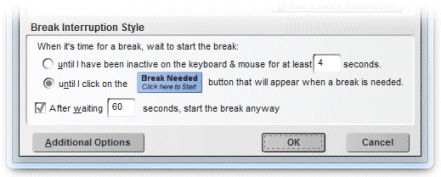 You can also adjust the Break Interruption settings here in the Detailed Break Settings screen | |
These settings allow you to adjust additional, but less frequently used, BreakTimer options.
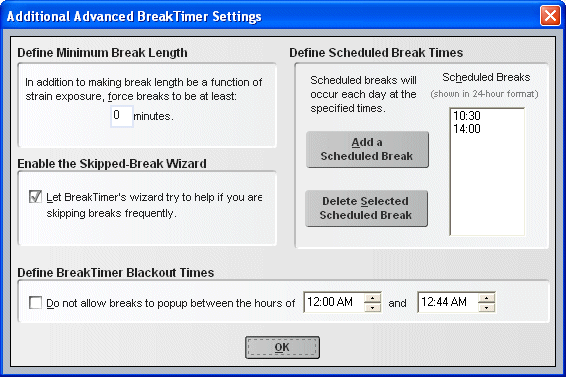
The Define Minimum Break Length setting allows you to specify the shortest break that BreakTimer will suggest. This can be useful for some doctor suggested break regimens. For example, if your doctor tells you to take a 15 minute break after every 30 minutes of work, you can set this setting to 15 minutes (and set the maximum time between breaks to 30 minutes).
| The Enable the Skipped-Break Wizard is normally
enabled.
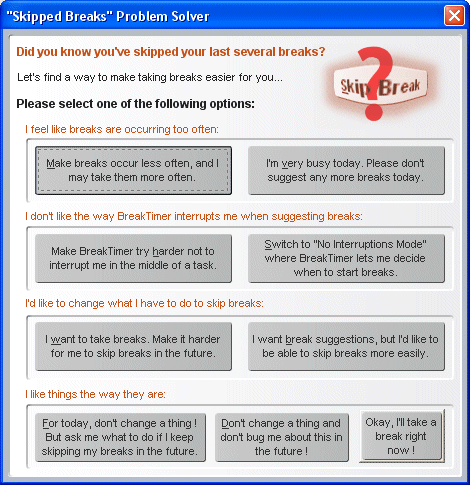
If the BreakTimer notices that you are frequently skipping breaks, it will try to offer a quick solution that adjusts the way the BreakTimer works, so as to make taking breaks easier for you. The wizard suggests four possible scenarios that may be causing you to skip breaks frequently, and then offers 2 or 3 solutions for that scenario. |
 |
The Define BreakTimer Blackout Times settings allows you to prevent breaks from occurring during a selected time range during the day. This setting should only be used if you have a regular period during the day when, for some reason, it is inappropriate for you to take breaks. During this time, BreakTimer will not suggest breaks, even if you really need one.
 ). This method avoids interrupting you by
placing a small button on the screen when it's time to take a break. When
you are ready to take the break, you manually start it by
clicking the button. This method poses the risk that you might not manually
start the break (e.g. you forget to, or you avoid doing so). However, this
method may be useful or necessary if your job tasks do not permit
interruption.
). This method avoids interrupting you by
placing a small button on the screen when it's time to take a break. When
you are ready to take the break, you manually start it by
clicking the button. This method poses the risk that you might not manually
start the break (e.g. you forget to, or you avoid doing so). However, this
method may be useful or necessary if your job tasks do not permit
interruption.