Support |
Frequently Asked Questions About Using RSIGuard
Registration, Purchase & InstallationThe registration, purchase & installation FAQ questions apply to single-copy licenses only. If your organization has purchased RSIGuard for you and other employees, this section does not apply to you.
AutoClick / KeyControl
BreakTimer
DataLogger
ErgoCoachForgetMeNots
Miscellaneous about RSIGuard
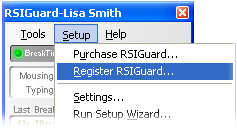
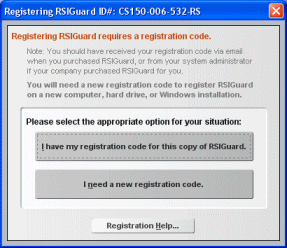
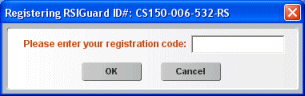
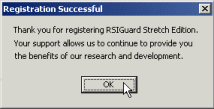
Miscellaneous about RSIRegistration, Purchase & InstallationHow does RSIGuard purchase and registration work?When you download and install the 45-day trial of RSIGuard from our website (or install it from a CD) you are getting a fully functional copy of RSIGuard. However, you are only allowed to use it for 45 days. At the end of 45 days, RSIGuard will nag you to either purchase a copy, or uninstall it from your computer. If you decide to purchase RSIGuard, you will receive a registration code. You enter this registration code into your trial copy (you can do this either when RSIGuard bugs you to register or by clicking on the Setup menu and selecting the "Purchase or Register RSIGuard" option). This converts your trial copy into a purchased, permanent copy. There is no need to install anything additional. What do I get when I purchase RSIGuard?Basically, you get a registration code. That registration code, when entered into RSIGuard, converts it from a trial to a permanent copy. There is no need to uninstall the RSIGuard trial because the trial becomes the purchased version. How does my RSIGuard license allow me to use RSIGuard (e.g. number of computers, length of time, etc.)?When you purchase RSIGuard, you are buying a perpetual license, which means you may use RSIGuard forever. You may install RSIGuard simultaneously on up to two computers (e.g. one at home and one at work) as long as the two computers are primarily used by one person. The two computers may be any combination of supported releases of RSIGuard (e.g. Mac, Windows, Linux, Stretch Edition, Call Center). When you uninstall RSIGuard from one of your computers (or if one of your computers with RSIGuard is no longer operable), you may reinstall RSIGuard on a new computer. For more detail, see the full license agreement which is installed on your computer (C:\Program Files\RSIGuard\license.txt) during RSIGuard installation. Or click here to see the license agreement (rev:2/2/2018). I have reinstalled RSIGuard onto a different computer. How do I register the 45-day trial copy so that it becomes permanent?If you have downloaded and installed RSIGuard onto a new computer (or a computer with a fresh Windows installation), you will need to reregister it (if not, you can download it here). In most cases you will need a new registration code. When you first run RSIGuard on the new computer, you will have the option to get a new registration code. Or optionally, you can click here to get a new registration code. I want to install RSIGuard on a second computer I own. How do I do that?Your purchase of RSIGuard entitles you to install RSIGuard on a home and a work computer. To install RSIGuard on the second computer, download RSIGuard from the web and install it. You will need to register the second computer (which makes the 45-day trial into a permanent copy). I'm moving to a new job/getting a new computer. How do I get RSIGuard on the new computer?First, uninstall RSIGuard on the computer you are leaving behind if possible. Next, download RSIGuard onto the new computer. Finally, you'll need a new registration code for the new computer. Click here to get your new code. If you wish to transfer your data and/or settings from your old computer to your new computer, click here to learn how. I have a registration code. What do I do with it?If you have a registration code that you received from us after purchasing RSIGuard, you can use it to convert your trial copy into a permanent copy. Registration codes start with the letter 'R', 'S', 'T', or 'X'. If you have a code that starts with something else -- it's NOT a registration code (if it starts with a 'C' it's your RSIGuard ID#). To register RSIGuard with your registration code, follow these steps:
I get an error when I try to register RSIGuard. What's wrong?If you get an error message telling you that registration was not successful, here are some possible reasons:
I get an error when I try to install RSIGuard. What's wrong?If you get an error when installing RSIGuard, there are two possible reasons.
If you don't have permission to install RSIGuard, you may need to request that an IT/IS administrator at your company install the software for you. See the next FAQ item for other options. If you have permission to install software, then the problem is an incomplete or incorrect (corrupt) download. To correct this, you'll need to download RSIGuard again. If you downloaded RSIGuard from anywhere other than the RSIGuard download page, you may need to also clear your browser's download memory (cache). Why? Most browsers maintain a memory of previously downloaded files, so you may need to clear this memory in order to force your browser to really download RSIGuard again. Again, this step is not needed if you download from the RSIGuard download page. I don't seem to have rights to install software. Can I still use RSIGuard?If you don't have rights to install software on your computer, you can still use RSIGuard. However, you should first consider that your organization may not approve of you using software they haven't vetted. If that's the case, the best strategy is to ask your IT team to review and approve use of RSIGuard. You can generally bypass installation rights issues by following this process:
If you want to stop using RSIGuard later, just remove the Startup shortcut. To completely uninstall RSIGuard, also remove the RSIGuard folder you copied to your computer. How do I get a receipt/invoice for my purchase?If you need a receipt for an RSIGuard order:
If you need a receipt for an RSIGuard purchase you made from a reseller, you will need to contact the reseller for a receipt. My organization is tax exempt. How do I avoid paying sales tax?If you are buying 1-20 copies of RSIGuard from our online reseller service, eSellerate, using a credit card, please click this link for eSellerate's instructions on purchases by tax exempt organizations. If you are buying RSIGuard directly from Enviance, please let your account representative know if your organization is exempt from paying sales tax. What version of RSIGuard am I using and how do I get updated versions?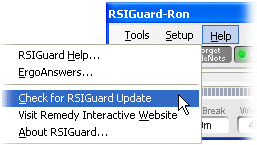
You can periodically use the "Check for RSIGuard Update" item within the RSIGuard Help menu to see if a new version of RSIGuard has been released. If a newer version is available, RSIGuard will give you the option of seeing what's new and downloading and installing it (assuming you have permission to install software on your computer). If you've already registered RSIGuard, the update will automatically be registered. You can check the version of RSIGuard you have installed by:
Do I need to uninstall RSIGuard before installing a newer version?It is not necessary to uninstall RSIGuard before installing a newer version. The best way to get an update is to click the Help menu, and select "Check for RSIGuard Update". This will automatically update you. However, if you have downloaded an update manually, you may wish to exit RSIGuard before installing the new version to avoid needing to reboot Windows. What is an RSIGuard ID# and how do I find out what mine is?Each computer upon which you install RSIGuard gets a unique RSIGuard ID#. If you install RSIGuard on 2 computers, you have 2 RSIGuard ID#'s -- one for each computer. Your RSIGuard ID# starts with the letter 'C'. Your ID# will look something like "CS-242-332-292-RS" or "C212-990-021-GB". Please include your RSIGuard ID# in any correspondence with us regarding registering your copy of RSIGuard There are several ways to get your RSIGuard ID#.
We use your RSIGuard ID# to generate a registration code for one particular computer. That means that if you install RSIGuard on a second computer, it will have a different RSIGuard ID#, and you will need a second registration code for the second computer. How do I upgrade from RSIGuard Standard Edition to RSIGuard Stretch Edition?If you own RSIGuard Standard Edition and wish to upgrade to Stretch Edition, here's how to do it.
If you own RSIGuard Stretch Edition and wish to upgrade to v4.0, click here. I want to move my RSIGuard data and settings to a new computer. How do I do that?Can I copy/backup my RSIGuard settings when I install RSIGuard on a new computer?If you use 1 or more computers or occasionally upgrade to a new computer, and your computers are on a network, then rather than copying your settings when you switch computers, the best solution is to use RSIGuard's Roaming Profile feature. By configuring each computer to use a roaming profile, all your computers will share the same profile, and changing a setting on one computer will cause it to change on all of your computers. When you upgrade to a new computer and configure it to use the roaming profile, it will have all of your settings. If your settings are on a computer without a network, and you are simply switching from one computer to another, you cannot use roaming profiles. You will need to copy the settings (and optionally copy/backup your DataLogger data as well) from the old computer to the new one. To save your settings from your old computer:
On the new computer:
Although the ability to use Roaming Profiles exists in the Windows, Mac and Linux versions of RSIGuard, the user interface to enable it only exists for Windows. This is because Roaming Profiles are normally set up by organizations (with group licenses and custom RSIGuard installations that automatically connect to Roaming Profiles). If you want to set up Roaming Profiles on an individual Mac or Linux RSIGuard installation, it requires a little more work.
Note that [some-network-path] should be replaced by a location on your network where you want to store your RSIGuard data/settings. Note also that you can point Mac, Linux and Windows installations to the same network location as the files are compatible between platforms. How do I uninstall RSIGuard?If you've decided not to continue using RSIGuard, we'd really appreciate hearing why. Please click here to tell us. For Microsoft Windows: If you had a system administrator install RSIGuard for you, you will likely need their assistance to uninstall RSIGuard as well. This is because your organization may have restricted your rights to install and uninstall software on your computer. If you installed RSIGuard yourself or if you have rights to install/uninstall software, then you can do so by following these instructions:
If you don't see the "Uninstall RSIGuard" option, you can also uninstall RSIGuard from the Windows Control Panel. To do so:
If this procedure gives you an error message, then you don't have the necessary rights to uninstall RSIGuard. You will need to contact your system administrator. If you are unable to uninstall RSIGuard using the above instructions, and cannot get assistance from your system administrator, you can try manually removing RSIGuard -- but this is NOT a recommended way to start! Carefully follow this procedure:
For Mac OS X: RSIGuard is installed using Apple PackageMaker, which is Apple's recommended standard method for installation. Although it does not provide an uninstaller, uninstalling on the Mac is simple. To uninstall RSIGuard, exit RSIGuard, browse to the Applications folder in the Finder, then select RSIGuard.app and drag it to the Trash Can. AutoClickHow do I drag stuff around without the strain of holding down the mouse button? My drag lock hotkey doesn't work, what's wrong?The easiest way to drag something with the mouse is to use the DragLock hotkey. Tap the Drag Lock hotkey (do not hold it down), and RSIGuard will click and hold down the mouse button (virtually, of course). Move the mouse around or use the arrow keys to drag (i.e. to move or select something). To end the drag, either tap any key (except the arrow keys) or click the mouse. You can drag a window around, drag to select things, drag to scroll in a window, or do anything else that normally requires holding down the left, right, or middle mouse button. If drag lock does not seem to be working, make sure you are not holding the hotkey down. Just tap and release the hotkey to begin the drag lock operation. What are good choices for AutoClick hotkeys/can I select new hotkeys?A hotkey (or shortcut key) is a fancy name for a keystroke like "Ctrl-Shift-H" or "F8" that performs a certain function. For example, pressing the shortcut key "Ctrl-ESC" opens the Windows start menu. AutoClick's KeyControl feature lets you create new hotkeys to do things like cause a single, double or triple click by pressing a particular keystroke (that you can select). When you first ran the Setup Wizard, RSIGuard let you quickly define a group of hotkeys to perform various RSIGuard related functions (e.g. double click, start a break, and many others) and it let you pick which keypress combinations should be used. You can, however, reassign each hotkey individually with any keystroke (e.g. Ctrl-X for single click, F2 for double click, and Ctrl-Shift-F5 for triple click). To do this, click on the Setup menu and select Settings. Select the KeyControl tab, and click the button "Add A New Hotkey" to create a new hotkey or "Edit Selected Hotkey" to edit a hotkey you already have. This will let you set each of the RSIGuard related hotkeys as well as create other hotkeys to do various functions. See the KeyControl feature for more information about setting up hotkeys. When you choose a key combination for a hotkey, you shouldn't choose one that isn't used by the programs you will personally be working with. For example, Ctrl-R is not a good choice if you like to press Ctrl-R in your email program to reply to email (e.g. in Outlook and Netscape Communicator) because the key will be reassigned to the new function. Since many people don't use the numeric keypad, that is one of the suggestions made in the RSIGuard Setup Wizard. If you use the numeric keypad but don't use the F-keys, you might want to set your hotkey settings accordingly. After setting hotkeys, try taping masking tape or small labels to the keys you select to make finding and remembering them easier. Note: Some programs intercept special keystrokes and may interfere with RSIGuard's hotkeys. For example, Windows likes to steal F1 for help, so it is better not to use F1 for an RSIGuard hotkey. RSIGuard sometimes causes unexpected clicks. What can I do?RSIGuard has various features to prevent false clicks. For example, by default, RSIGuard will not click while you are typing, or after you have recently clicked the mouse yourself. However, the default timeouts for these options may be too short or too long for you. By selecting the "Advanced Settings" button in the Settings dialog's BreakTimer tab, you.can fine tune these timeouts (and others) to optimize RSIGuard's behavior. Still, you will need to learn new mousing habits. For example, you need to know where you're going to click before you move the mouse, because when you stop moving, the mouse will click (though a click can be overridden with the 'no click' hotkey). Some people wiggle their mouse around while thinking (just like some people tap their fingers) -- this doesn't work with AutoClick, but it's a good thing to eliminate anyway since it is unnecessary strain. You can also define AutoClick Filters to prevent AutoClick from clicking in certain situations or to cause AutoClick to only click in certain situations. Is using AutoClick better than switching to an ergonomic mouse or a different kind of pointing device?Many RSI sufferers will try various ergonomic mice as well as alternatives to mice. Some people also try switching their mousing hand from right to left or left to right. Some solutions may be better than a standard mouse while others simply postpone pain by distributing the strain to different areas of your hands and arms. RSIGuard's AutoClick feature, however, largely eliminates the need to click the mouse which is the source of most mouse-related pain. Furthermore, because you no longer need to grip the mouse, an ergonomic mouse may no longer even be necessary. AutoClick does not eliminate the need to move the mouse to point at things, so if you find a particular pointing device to be helpful for moving the mouse around, it makes sense to use that device in conjunction with AutoClick. If the mouse cursor is in the way, how can I move it away without causing a click?When you move the mouse away, either: Move the cursor away and quickly tap the CTRL key (or SHIFT).or... If the mouse cursor is in an edit field, move it aside, but still in the edit field. That way, when the click happens, the typing cursor remains where it was. Or move the mouse cursor to a neutral area -- one that won't change the focus. Sometimes, when I let go of my mouse, it slides a little, causing AutoClick to do a spurious click. What can I do?One way to prevent this is to make sure the cord on your mouse is clear of desk clutter and to ensure that your mouse is on a flat surface. If that doesn't work, various mouse manufacturers makes cordless mice which work very well with AutoClick. Finally, you can increase the "Trigger distance in pixels" in the AutoClick tab of the Settings dialog. Doing that makes RSIGuard wait for a larger mouse move before it will automatically click -- thus filtering out small movements that sometimes occur when you let go of your mouse.. Is there a way to temporarily turn AutoClick off?There are several ways, depending on what you really want to do.
When I pass over an item with a tooltip, AutoClick clicks and prevents me from seeing the tooltip's text. What can I do?Go to the AutoClick tab in the Settings dialog. Make sure that the Trigger Time is at least 8 tenths of a second (though 9 or 10 is even safer). Next, select advanced settings. Make sure that 'Delay AutoClick when a ToolTip help box pops up' is checked. This will cause AutoClick to postpone clicking by the specified time, allowing you time to read the text. Can I use AutoClick to reduce strain while playing games?Playing games can be an extremely strain-inducing activity, so it's important to use common sense and moderation to avoid developing injuries. That said, AutoClick can help in some cases even though it is not an intended purpose. Some gamers have told us that they accomplish rapid firing (which normally requires rapid and constant mouse clicking) by assigning AutoClick's single-left-click to a hotkey. By holding the hotkey down, the key repeat causes the mouse button to rapidly click over and over, until the key is released. Some users even place a weight on the key which causes the rapid-fire clicking to occur hands-free, until the weight is removed. How can I make AutoClick click faster?To make AutoClick click faster, click on the Setup menu, select Settings, and click on the AutoClick tab. The first setting, "Trigger Time" controls how long it takes AutoClick to click once you stop moving the mouse. You can set it as fast as 1 tenth of a second. In order to set the Trigger Time below 7 tenths of a second, however, you must also turn off the "ToolTip detection" setting. To turn off "ToolTip detection", click on the Advanced Settings button (in the AutoClick tab). Uncheck the "Delay AutoClick when a ToolTip help box appears" setting. This also means, however, that ToolTips will not generally appear, since clicking the mouse prevent a ToolTip from popping up. If you need to see some ToolTips, you can use the "Skip Next Click" hotkey and view ToolTips as usual. How can I make an AutoClick filter?Here are two AutoClick filter examples. Example 1: Make a filter to prevent AutoClick from clicking in the Minesweeper game.
Example 2: Make a filter to prevent clicking the Send button in Outlook or Outlook Express
Read the AutoClick filter documentation for more information How can I prevent AutoClick from clicking on a link in an email?If you use Outlook (and some other email clients), hovering over a link will display where the link will go to. This can help you spot if the link is safe (i.e. goes where you think it's going). But, if AutoClick is enabled, it will click on the link before you have time to determine the link is/isn't safe. AutoClick can tell that it is hovering over an email, and thus you can create an AutoClick filter to not click on the body of an email, and thus not click on links within an email. To do so, visit the AutoClick Settings tab, select AutoClick Filters, and create a new filter. The filter sentence may vary, but in most versions of Outlook, should read "When cursor is over button named 'Message', don't autoclick, keep hotkeys active". If you use a different client, just use the AutoClick Filter hovering identification feature to identify the replacement for "button named 'Message'". If the filter is set up correctly, RSIGuard won't click in the body of an email, but will still click on other parts of the email client (e.g. other buttons, messages, etc.) By using this and other filters, you can make sure AutoClick provides most of its benefit, and is only disabled if/where it needs to be. Can I make an Alt-Tab hotkey?Yes. Here are 3 approaches to simulating Alt-Tab using hotkeys.
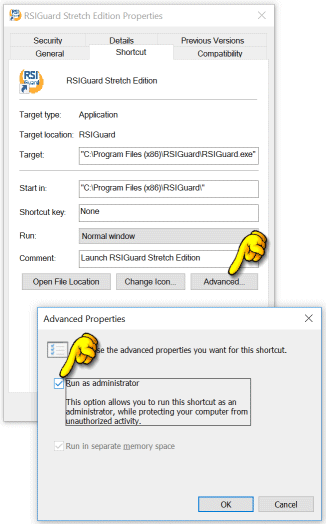
How can I remap keys on the keyboard?KeyContol gives you the ability to assign new functions to keys on the keyboard using hotkeys. (Note: earlier versions of RSIGuard had a 'keyboard remapping' feature that has been removed.) Say you want to move the Tab key onto the Q key to make it easier to type (since it can be very frequently used compared to Q). You could assign a hotkey to the Q key that presses Tab. Then you could assign a hotkey to Tab and Shift+Tab to type 'q' and 'Q' respectively. If you use Shift+Tab and/or Ctrl+Tab, you could assign hotkeys to Shift+Q and Ctrl+Q to type them as well. You could even put Tab in multiple places if you want to move your 'Tab key usage' around more. RSIGuard doesn't count some keystrokes/mouse events/AutoClick doesn't click on certain items. What can I do?When RSIGuard is run normally, Windows security prevents it from interacting directly on an application running as an administrator (or that otherwise has elevated privileges, e.g. from User Account Control). In that case, RSIGuard cannot:
There are 2 ways for RSIGuard users to manage this issue.
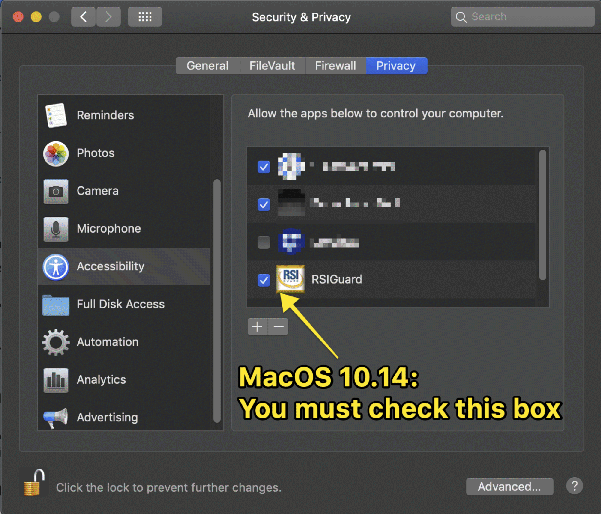
Autoclick doesn't click on OS X 10.14 (Mojave) or later. What can I do?Apple added a security feature in OS X 10.14 that requires you to grant RSIGuard the ability to click the mouse for you or to create global hotkeys. To grant RSIGuard the necessary privileges to use these features:
I use RSIGuard on my Mac/Linux machine. Can I view my RSIGuard data?
If you use RSIGuard "standalone" (e.g. you installed RSIGuard by downloading it from our website, or your organization uses RSIGuard without OES), then you can only view RSIGuard data using the Windows UserInsight application. However, the data files produced by RSIGuard are identical on all platforms. So, if you have access to Windows (e.g. via Parallels on Mac, Wine on Linux, or a native installation of Windows) you can view your data there by installing UserInsight. The easiest way to install UserInsight is to install the 45-day trial of RSIGuard. If you don't actually want RSIGuard to run on the Windows installation, you can disable it by deleting the RSIGuard icon from the Startup menu. Finally, with UserInsight running, you need to browse to your RSIGuard data. By default your data is in your home folder (e.g. for OSX, /users/username/Library/Application Support/RSIGuard/Data/username.tid. For Linux, /home/username/.RSIGuard/Data/username.tid.) BreakTimerHow can I adjust the frequency of breaks?To adjust break frequency, click on the Setup menu, select Settings, and click on the BreakTimer tab. There are several settings that allow you to adjust break frequency. To get started, please see the BreakTimer settings documentation. Here are some additional tips: Adjust the top two sliders to adjust how often breaks occur. As you adjust the sliders, you can watch the effect it has on the "Average time between breaks" value. You can adjust the length of breaks as well, but note that when you do so, it will also adjust the average time between breaks so as to insure that you still get enough total break time. It is important to realize that these 3 settings only control the average length and average spacing of breaks. The actual length and spacing for each particular break is also based on how you work. If you work hard, breaks will occur more often than the average. If you work lighter, they will occur less often. The BreakTimer also includes two other settings to help control break spacing. The "Set minimum time between breaks" setting can be checked to guarantee that BreakTimer will not recommend breaks too often (i.e. more frequently than the time interval you specify). The "Set maximum time between breaks" setting can be checked to insure that RSIGuard will not let you work longer than the specified time without taking a break (regardless of the intensity of the work). I don't have any discomfort -- why should I take breaks?An RSIGuard user once wrote: As a 41 year old software engineer, I had no pain using the computer. I didn't know that many people develop Repetitive Strain Injury (RSI) over the course of 15 or 20 years before having any pain. I figured I was immune to RSI and that I didn't have the 'gene' for it. When the pain first began, I ignored it. Now, I can't ignore it. For now I can still work, but it has forever changed my stamina, and I may have pain as long as I use computers. It affects most everything I do. What's the greatest medical problem facing the computer industry? Most people guess carpal tunnel syndrome, tendonitis, or more generally, some form of computer-related repetitive strain injury. While those may be the common injuries brought on by repetitive computer use, it is reasonable to argue that the real problem is a lack of ergonomic awareness and widespread denial that these injuries can occur to anyone. The US Bureau of Labor Statistics reported that RSI's more than tripled in frequency in the 80's and 90's. They account for $15-20 billion in workers conmpensation costs (1/3rd of all workers comp costs) from roughly 1/2 million annual injuries. People often assume that they won't have RSI problems because they have no symptoms now. But repetitive strain injuries only become apparent after repetition. Therefore, if you use computers frequently, you likely have already begun to injure yourself. For example, in one type of injury, a tendon passes through a tunnel in the wrist, and builds up scar tissue over time. There are generally no or few symptoms as the scar tissue builds up. By the time the scar tissue becomes so extensive that discomfort is constant, the tissue is blocking movement in the tunnel and may require drastic measures such as surgery to reverse. If you use a computer, you are at risk and need to understand that denial will not protect you! Consider this experiment. Tell an asymptomatic person about a new ergonomic "solution," and they're likely to tell you that they know someone who could "really use something like that." It's rare for the person who is pain-free to think that they need to examine their own ergonomic situation or that they might be injuring themselves. But millions of people are well on their way to symptomatic injuries and simply aren't aware of it yet. These people are prime candidates for ergonomic improvements, but without awareness, are unlikely to take preventative steps. While 'RSIGuard' alone can't insure you won't get RSI, it can help. RSIGuard helps reduce your strain at the computer (with AutoClick), gives you meaningful breaks that are tailored not only to your physical health, but also to your willpower (with BreakTimer), keeps you conscious of your behavior (with ForgetMeNots), and keeps track of your progress (with DataLogger and the companion program UserInsight). Most people, especially those without symptoms, have a hard time disciplining themselves to change their patterns. RSIGuard was designed with this in mind. It was created with feedback from real people who use it, and thus each feature has been carefully crafted to help you overcome the behavior challenge and stay healthy. Won't taking breaks just reduce my productivity?The US National Institute for Occupational Safety and Health (NIOSH) has released a study showing that regular short rest breaks can reduce eyestrain and musculoskeletal discomfort for computer operators without reducing productivity. Workers who took four 5-minute rest breaks spaced throughout the work day, in addition to their regular two 15-minute breaks, consistently reported less eye soreness, visual blurring, and upper-body discomfort than those who just took the two 15-minute breaks. Quantity and quality of work in both groups was the same. A Cornell study showed that breaks actually increase productivity. Click on these links for more detailed information:
I don't like BreakTimer popping up and interrupting me. What can I do?Having the break window popup when a break is needed helps insure you take your breaks. But
for customer-facing jobs, call-center/phone-intensive work, or other jobs where interruptions are too intrusive, RSIGuard offers an alternative way to let you know a break is needed, called "Polite Mode".
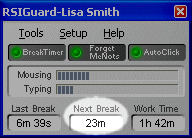
In this mode, BreakTimer displays an indicator ( The downside to "Polite Mode" is that it's easy for you to ignore the suggestion to take a break. Thus, a third "hybrid" option lets you use Polite Mode, but starts the break automatically if you take too long to start the break yourself (you specify the "too long" threshold). For details on how to use Polite Mode, see the online help for 'Interruption Style'. I've tried using BreakTimer, but the breaks are too frequent/intrusive for me?Taking breaks is inevitably disruptive if you are trying to work non-stop. Of course, working non-stop can lead to injury, and the purpose of BreakTimer is to avoid that. So, ask yourself if the break suggestions are really too frequent, or if you are just working too hard or too long. If you decide that the breaks really are too frequent or interruptive, there are several solutions. You can avoid the "surprise factor" of the break window by realizing that BreakTimer gives you several warnings that a break is approaching: the "Time to Next Break" value on the main window shows how long it estimates it will be until the next break; the blinking RSI icon in the system tray tells you a break is only a minute or 2 away; and an optional sound can be played about 1 minute before a break starts. Furthermore, BreakTimer automatically will attempt to wait for you to finish what you are typing or doing with the mouse before starting a break. Finally, RSIGuard will never start a break in the middle of an activity like dragging and dropping with the mouse. Next, to be sure that you are really taking breaks are as frequently as you think, try to notice the "Time since Last Break" value on the main window. It tells you how long ago you completed your last break, and can often surprise you with how long ago it actually was. If you still want to reduce the frequency or placement of breaks, BreakTimer has numerous settings that control how breaks occur. The most important two settings to consider if you feel breaks occur too often are the "Minimum time between breaks" setting and the "Blackout Times" settings. These and other settings can be adjusted to reduce the frequency of break suggestions as well as control when BreakTimer is allowed to interrupt you with break suggestions. BreakTimer never (or rarely) tells me to take a break. Why not?BreakTimer's model generally tries to suggest breaks when you have done too much mousing and keyboarding without resting enough on your own. If you regularly take pauses from working on the computer, BreakTimer acknowledges these "natural breaks" and will make fewer (or even zero) break suggestions.
If you want more break suggestions, you can adjust the BreakTimer settings to either:
To adjust these settings, see the FAQ item How do I adjust BreakTimer settings. I use another break timer. Can I continue to use it?RSIGuard's BreakTimer is the most advanced break timer available. It tells you when to take breaks when you really need them rather than after a preset number of keystrokes, mouse movements, or time. However, if for some reason you wish to use another break timer, disable BreakTimer (either from the Settings dialog or from the main window). Although RSIGuard has not been tested with all other break timers, it should not conflict with any of them. I thought RSIGuard modeled my pain. Why must I take a break now when my wrists don't even hurt?Actually, RSIGuard models your strain. Strain usually doesn't hurt until it reaches an extreme. The point of the BreakTimer is to tell you to rest before you reach a painful state. This lessens long term damage and also minimizes pain you experience. Your strain threshold varies each day, so some days you may experience pain before RSIGuard tells you to take a break. If this happens with any regularity, then during a break use the "Adjust Break Frequency" button or adjust your settings in the Settings dialog under BreakTimer. How does RSIGuard compute/measure strain?Each action you do during working at the computer affects the strain calculation. Keyboard strain is a function of which keys you use (e.g. Ctrl-X causes more strain than plain X, and Shift-Ctrl-F9 causes more than Ctrl-X) as well as how quickly you type. A period of time with no typing relieves some keyboard strain, moreso if there is no mousing either. Mouse strain is a function of how much mouse moving you do combined with how much clicking, dragging, double-clicking, etc. Each action is assigned an appropriate amount of strain and actions that take advantage of AutoClick features are appropriately reduced in assigned strain. Again, a period of time without mousing relieves accumulated mouse strain. Although there are other factors, this is the basic idea behind BreakTimer's strain calculation. For the more math minded, the unit for strain is arbitrary but absolute, constant, and comparable between a user over time as well as between different users. In the display that shows typing and mousing strain, however, strain is actually show as the % of strain accumulated towards the threshold that triggers a break (i.e. current-strain divided by break-inducing-strain-threshold). How is a natural break different from and RSIGuard break?A natural break is any time you stop working at the computer on your own. Because natural breaks are often breaks from the computer during which you do other work, RSIGuard conservatively assumes that natural breaks allow you to rest somewhat from strain, but not as much as during an actual break. Therefore, to make RSIGuard's model work, it is important that during an RSIGuard-imposed break that you really rest. Get up and walk around and/or stretch. Do not do other work that is stressful to hands, eyes, shoulders, etc. How does RSIGuard work with Dragon NaturallySpeaking?RSIGuard differentiates between your typing and the text typed by voice recognition. Text typed by voice recognition software is not counted as typing by BreakTimer (or DataLogger). The exception is that keys pressed using the command "press KEY" are counted as keystroke activity. RSIGuard does not differentiate between your mouse movement via a pointing device versus voice commands in NaturallySpeaking, and thus all mouse actions add to activity counts. The result of this is that you will still get breaks after a fair bit of voice command work that includes some mouse activity or use of the "Press KEY" command, especially if you use a "Minute-by-Minute" work restriction. Sometimes after being away from my computer, BreakTimer will initiate a break shortly after I return. Why?There are a few possible reasons for this.
If you can't figure out why, please follow the following steps:
What are the optimal settings for the BreakTimer to prevent injury? How does BreakTimer decide how to time breaks?RSIGuard's BreakTimer model is based on research that has been done with respect to breaks and microbreaks by the National Institute of Occupational Safety & Health (NIOSH) and Cornell University, as well as our own research on strain exposure using surface electromyelography (sEMG). Guided by this research, we believe that our break scheme is effective at reducing the risk of injury while maintaining productivity. However, there is no research that provides any significant guidance as to how to define the optimal break schedule as a function of job type/intensity. This is due in significant part to the fact that before RSIGuard was developed, there was no cost-effective way to measure the strain exposure of computer users. Because BreakTimer is uniquely able to consider the user's work intensity, it gives break suggestions on a non-linear schedule that varies according to the user's task and intensity level. It is widely accepted: that breaks and microbreaks help; that breaks should be more frequent if the user works harder; that user psychology can reduce the benefit of breaks if they appear intrusive to the user; and that computer-suggested breaks can be less frequent the more the user rests on their own. However, the research is still too young to give objective guidance on precise schedules that will achieve a particular risk of injury for a particular user. BreakTimer is designed to give a break schedule that logically conforms to the available research and that intelligently complies with experientially-based advice about break schedules commonly given by doctors and therapists (see the Break Timer Analysis for more information). We believe from a logical and anecdotal standpoint that more breaks means lower injury risk. However, there is obviously a point of diminishing returns where additional rest does not significantly reduce injury risk, where user resistance to breaks would become intolerable, and where productivity would suffer. The initial wizard interview that RSIGuard gives to each new user attempts to balance these factors to create an optimized break schedule based on our experience and the feedback from thousands of users. For that reason, we recommend letting users use the setup wizard for their initial setup. If users complain that breaks are too frequent, then reducing the frequency of breaks may be indicated simply to maintain willing compliance. If users are being injured too frequently, then increasing the frequency of breaks may be indicated. That said, there are researchers that are looking at this issue to help us improve our model and to help provide additional guidance to end-users. Futhermore, if your organization is willing, we encourage you to help us by making your user settings, usage information, and injury statistics available so that we can further develop our recommendations for you and future RSIGuard users. If this is a possibility, please contact Technical Support. Why does BreakTimer lock my keyboard and mouse during breaks? Can I disable that?If you have this question, you may be misunderstanding the idea of the BreakTimer. The purpose of an RSIGuard break is to get you to stop using the computer. While the BreakTimer window is displayed, you should not be using the keyboard or mouse -- you should be either resting or doing non-computer activities. If you must use the computer, however, realize that you are generally not "locked out". You just need to postpone the break or skip the break using the Postone or Skip buttons. If you keep typing/mousing during a break, then there is no point to the break. Thus BreakTimer gives you the choice to either take a rest from the computer (in which case the keyboard and mouse won't be used), or to reject the suggestion of the BreakTimer model to rest (by clicking Postpone or Skip). Finally, if you don't want breaks to start automatically (thus forcing you to either not use the keyboard/mouse or click skip/postpone), you may use BreakTimer's polite mode. This is generally the appropriate choice for Call Center, and other customer-facing or phone-intensive jobs. Windows occasionally reports "The color scheme has been changed". What should I do?Please see our technical note about this issue. Videos are not appearing (or appear solid black) or an error message appeared about stretch videos. What do I do?Please see our technical note about this issue. DataLoggerWhat kind of data is recorded by DataLogger?RSIGuard stores how long you work and how long you rest, what kind of work you do (mouse vs. keyboard), how many words you type and the rate at which you type them. It also records statistics about how often you type each key, how long you take to find the key, and how long on average you hold it down. It also records information about breaks taken, breaks skipped, breaks postponed, and time spent in breaks. These statistics can be viewed in reports, and are also used by other features (e.g. BreakTimer, Work Restrictions, ForgetMeNots) to dynamically adjust to your work patterns. Detailed information about recorded data is available in the document A Detailed Analysis of RSIGuard's DataLogger (which is also accessible from the Help menu of the UserInsight program). How do I access the data recorded by DataLogger? Where is this data stored?The data recorded by RSIGuard is stored on your computer or on a network. Unless your organization has restricted access to it, the data in those files can be viewed from the Tools menu of RSIGuard. Click on Tools, "DataLogger Usage Statistics". By default, this data is stored in %appdata%\RSIGuard. However, if your organization installed RSIGuard for you, or if RSIGuard detected that it couldn't use this location, then data may stored somewhere else. If your organization has not restricted access to viewing/changing the location, you can click on Setup, "Profile Management", "Manage Roaming Profile" and look at the Roaming Data field to see where RSIGuard stores data. Can I store data on a network/Cloud Drive?Storing usage data and/or profile settings to a network has the advantage that your data is accumulated across all the computers you use, and settings follow you between all your computers. Individual users of RSIGuard can store their data on a network, or cloud drive (e.g. Google Drive, Microsoft OneDrive, etc.) Click on Setup, "Profile Management", "Manage Roaming Profile" and set the Roaming Data and/or Roaming Profile field to the network/cloud location. However, there are potential issues with cloud storage. Cloud services sync data to the cloud at different intervals, and using different mechanisms. So, if you have multiple computers pointing to the cloud, changes may not be properly reflected if you switch between computers faster than the synchronization of cloud data occurs. This is not an issue for a network drive (for which RSIGuard handles shared data, intermittent connections, etc. well). If you use RSIGuard as part of an organizational license, your IT department controls if data is stored on a network or on your local computer. Why is it valuable to collect this data?If you collect the data before an injury occurs, the resulting data may help a doctor or other health professional understand what is causing your injury and thereby guide them in planning your treatment. We have received very positive reports from doctors on the informative value of UserInsight graphs that patients have brought them. If you collect the data after an injury as well, the data can help you understand whether or not you are reducing your work intensity and whether or not there are work patterns of yours that lead to pain. Am I risking an infringement of my privacy by allowing this data to be collected?RSIGuard Software is very concerned about your privacy. RSIGuard's data monitoring is specifically designed to tell about your ergonomics only. A detailed discussion of this is available in the DataLogger document. For example, unlike some competitive products, we specifically do not record what applications you are using. Therefore, your company can see how much you use the computer, but not what types of activities you do (e.g. email vs. word processing vs. web browsing). We hope that individuals and organizations will appreciate the importance of privacy and respect our decision to respect the privacy of RSIGuard users. When I use Remote Desktop Connection in full-screen mode, RSIGuard doesn't count keystrokes. What's the solution?This seemingly simple question has a surprisingly complex answer. Be sure to read this entire answer, because solutions for various scenarios are described. Background: Remote Desktop Connection (RDC) can send special keystrokes (e.g. Alt-Tab) to the local computer or the remote computer. By default, it sends these keystrokes to the local computer if RDC is not maximized, and to the remote computer if it is maximized. This makes sense, because when RDC is maximized, the idea is that your experience should be exactly as if you were on the other computer and the local computer were not involved. To get low-level key combinations like Alt-Tab and Ctrl-Alt-Del to be sent to the remote computer, RDC intercepts keystrokes and sends them directly to the remote computer in a way that prevents local applications (including RSIGuard) from detecting the keystrokes. Solution 1: If you use your local computer as a "dumb" terminal to access another computer, it generally makes most sense to install RSIGuard on the remote computer (and not on the "dumb" terminal). That way, all of RSIGuard's context-sensitive features (e.g. AutoClick filters, BreakTimer filters, AutoClick click-prevention features, etc.) can function properly. Solution 2: If you generally use both the local and remote computer, it can make sense to install RSIGuard on both machines. But if you want RSIGuard to aggregate your usage data (i.e. your data is stored on a network or within the OES), then you should use RDC in fullscreen mode - otherwise keystrokes typed when the RDC window is foreground (but not maximized) will be counted twice. Solution 3: If you only want to install RSIGuard on the local computer, but you use both the local and remote computer, you can change the default RDC behavior by clicking Options on the RDC opening window, selecting "Local Resources", and adjusting the "Keyboard option" (to "On Local Computer"). In this scenario, RSIGuard on the local computer will count all keystrokes on the local and remote computer, even when the window is maximized. But Alt-Tab and Ctrl-Alt-Del will always be sent to the local computer. Notes: If you use RDC to log in to another computer as a different user (e.g. for testing purposes, or system administration), and the remote computer has RSIGuard installed, the remote installation of RSIGuard will count the usage under the different user's account (since RSIGuard records data based on who is logged in). This issue also applies to VMWare sessions, and may apply to other terminal applications with analogous functionality. Can I copy/backup my DataLogger data when I switch to a new computer?If you use 1 or more computers and your computers are on a network, then rather than copying your data when you switch computers, the best solution is to use RSIGuard's Roaming Profile feature. By configuring each computer to store data in a common network location, all your computers will aggregate your computer usage in one location. If your DataLogger data is on a computer without a network, and you are simply switching from one computer to another, you will need to copy the data (and optionally copy/backup your RSIGuard settings as well) from the old computer to the new one. Follow these steps:
How accurate is DataLogger data?RSIGuard's ability to count keystrokes and mouse clicks is generally very accurate. But there are situations that prevent it from capturing every event. In most situations, the measured value will be within 0.1% of the actual measure for Windows English-Only version. The International Edition will typically be within 2-3% of the actual measure. For the vast majority of cases, this disparity has no impact on the use and interpretation of the data. RSIGuard's ability to measure breaks, natural breaks, time on computer, and mouse movement are generally very accurate because they aren't impacted by very small discrepancies in keypress/mouse-click event counts. The exceptions to this accuracy are:
ErgoCoachHow does ErgoCoach measure how I use multiple monitors?ErgoCoach's multiple monitor tools include a feature that measures where you spend time looking at your monitors. ErgoCoach uses this information to create personalized recommendations for optimal monitor position. Since RSIGuard can't actually see where you are looking, it uses various estimation techniques, including:
The algorithm is necessarily imperfect, but for most users it provides a fairly accurate estimate of their monitor use that helps guide monitor placement. But be sure use common sense. For example, a user who has a monitor that displays ongoing information to them (e.g. status of a network, power grid, or video security system) might spend a lot of time looking at a monitor, but never actually interacting with that monitor. In those cases, this feature would substantially understate how much that monitor was in use. Be sure to consider this when viewing associated monitor placement recommendations. ForgetMeNotsI can't type when a ForgetMeNots reminder appearsIf you can't type during a ForgetMeNots message, you have MicroBreaks enabled. The intent is that during a ForgetMeNot, you must stop working for at least 15 seconds. You can disable MicroBreaks if you do not like them by going to the ForgetMeNots tab in the Settings dialog. Why am I getting ForgetMeNots reminders I didn't enable?The messages ForgetMeNots shows you are randomly selected from the messages you select in the ForgetMeNots tab of the Settings dialog. However, you may also occasionally see messages that RSIGuard adds to your message list because it notices a typing or mousing behavior of yours that is possibly unhealthy. You can delete, disable, or edit these messages just like other ForgetMeNots messages. These messages will normally disappear within a day if the behavior disappears. Miscellaneous Questions about RSIGuardIs there a Mac, Unix or Linux version of RSIGuard?RSIGuard is available for Windows and for Mac OS X. Visit our download page from a Mac or a PC to download the software for your platform. RSIGuard for Red Hat Enterprise Linux 4+ is only available for multi-user licenses. Is RSIGuard compatible with my software?Yes. RSIGuard is used in thousands of environments, with thousands of applications of all types. There are no known incompatibilities. RSIGuard is compatible with all versions of Windows (up to Windows 7). It is also compatible with Mac OSX 10.3.9 or later. RSIGuard is also compatible with Red Hat Linux 4/5 Gnome or KDE (only available for site licenses). RSIGuard is usable on most Citrix-like thin-clients (for site licenses) and can be used in VMWare or Remote Desktop Connection. Is RSIGuard compatible with Windows 8/8.1?Yes, RSIGuard is compatible with Windows 8 and 8.1. Windows 8 and 8.1 introduced the concept of Metro Mode. Users can use Metro Mode to run small apps -- but most applications are still primarily used in Desktop Mode, which is the familiar Windows environment. For example, Internet browsers, Office applications, email clients, and most other applications still use Desktop Mode. All features of RSIGuard work as expected in Windows 8/8.1 Desktop Mode. AutoClick, KeyControl, and DataLogger, are also available in Metro Mode. However, in Metro Mode, RSIGuard can not display windows. So features that depend on this (e.g. BreakTimer, ForgetMeNots) are unavailable in Metro Mode. Practically speaking, RSIGuard works well in the Windows 8/8.1 environment for almost all use cases. Does RSIGuard require internet access?Most features of RSIGuard do not use the internet. However, there are a few features that are only available with internet access:
Will RSIGuard slow down my computer?RSIGuard places very minimal demands on a computer and should never have a detectable impact on performance. Looking at it more technically, the two main factors that control whether an application impacts a computer's performance are memory usage and CPU usage. RSIGuard uses about 4MB of RAM (< 1% on any modern computer) and CPU usage is also typically less than 1%. You can verify this by running the Task Manager on Windows (or other similar tools on Mac/Linux). An application can also affect how other applications run if it updates or changes shared software libraries (DLLs) -- however RSIGuard does not update or change any shared libraries so this is not applicable. Although we do get occasional reports that RSIGuard is slowing down a computer, in each case where investigation was possible, an unrelated cause was found. Luckily, if you think RSIGuard is impacting your computer, there is an easy way to check! Click on the Tools menu in RSIGuard, and click Exit RSIGuard. If exiting RSIGuard objectively improves system performance, RSIGuard could be the cause. Let us know and we can investigate the problem further. Because RSIGuard uses no shared libraries and leaves no processes running when closed, if exiting RSIGuard doesn't affect performance, RSIGuard is not significantly affecting performance. How can I reset an RSIGuard installation (i.e. clear settings, etc.)?To clear settings, hold the CTRL key down while clicking on the Tools menu, and select Factory Reset. Follow the prompts to clear settings. If you need to clear settings but the Factory Reset menu option is not available (e.g. RSIGuard won't launch, or you are using an older version that lacks the Factory Reset option), you can download the RSIGuard Settings Clearing Tool from the "Additional IT Support Materials" section on the IT Support Page. Can RSIGuard be set to run for some users and not others?In Windows, each user has a personalized Start Menu that merges with the system Start Menu. Normally the RSIGuard shortcut is placed in the system "StartUp" folder which applies to all users. Move this shortcut to the "StartUp" folders of users who wish to run RSIGuard and only those users will launch RSIGuard upon logging in. When RSIGuard runs, I can't use the numeric keypad. Why? or Where are my hotkeys?During the setup wizard, the KeyControl wizard page gave you the option of putting default hotkeys on the numeric keypad. If you chose this option, normal numeric keypad function (i.e. typing numbers) was replaced with RSIGuard hotkeys. To change the hotkeys to be somewhere else on the keyboard (or to remove hotkeys altogether), go to the Setup menu, select Settings, and select the KeyControl tab. Change the hotkeys to your desired location (or remove them if you don't want them). You can view your hotkey assignments by selecting "Show Hotkey Assignments" in the Setup menu. You may wish to place stickers on the keys you use to remind you where the hotkeys are. Click here for more information on hotkeys. RSIGuard Support asked me to email my settings. How do I do that?If someone from RSIGuard support has requested that you send your configuration settings to us, these are the steps to follow to do so:
What evidence supports the value of RSIGuard features?Several studies have indicated that breaks are appropriate prevention for computer-related RSI's, and our pilot research has shown that people are more likely to take breaks if they occur at appropriate times. Our users consistently state that BreakTimer predicts break-need better than other systems they have tried. People with mouse discomfort who use AutoClick often report that the reduction in discomfort is both immediate and permanent, which makes sense since AutoClick reduces or eliminates the need to click and drag with the mouse -- known causes of RSI. Awareness of risky behaviors has been proven to be beneficial towards injury prevention, and this is the benefit of ForgetMeNots. We have received very positive feedback from Occupational Therapists and Certified Hand Therapists about the information from DataLogger. As we consolidate research for presentation on our website, we appreciate assistance from researchers and ergonomics scientists. However, in our discussions with foremost researchers on RSI, a frequent comment is that there is very little research that validates any current ergonomic aid. Although this lack of evidence does not imply that current methods don't work, it also gives little guidance about what does. That is a primary motivation for RSIGuard's DataLogger. We believe that by showing how, how long, and how intensely people are working we can not only help researchers find patterns that cause RSI, but we can help learn what behavior changes are most associated with recovery. Although we have initiated research along this line of reasoning, we are always anxious to discuss research possibilities with interested ergonomics scientists. Click here to view a report that includes research references. Miscellaneous about Repetitive Strain InjuriesWhat does RSI stand for? Are there other names for RSI?RSI stands for Repetitive Strain Injury though some people say RSI stands for Repetitive Stress Injury. Another name for RSI is Cumulative Strain Disorder (CTD) or occupational overuse syndrome (OOS). Carpal Tunnel Syndrome (CTS) is often used interchangably with RSI, but CTS is really just one of many types of RSI -- others include tendinitis (often spelled tendonitis), tenosynovitis, deQuervain's syndrome, Thoracic Outlet Syndrome, and many others. Is RSI a recent problem?According to a 1995 paper by Joy Linn: In 1893 "Gray's Anatomy" describes peritendinitis crepitans as occurring in washer women (Barton, 1989). Some old names for CTD from the past include: glass arm, telegraphist's cramp and washer woman's thumb. In the 19th century "traumatic tenosynovitis" and "peritendinitis crepitanis" were acknowledged as pain caused by work activities. Earlier this century morse code operators experienced similar disorders. The recognition of CTD has increased as the numbers of injuries increase worldwide. |
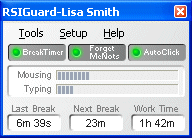
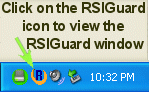
 ) that tells you that you need to start your break -- and as soon
as you click on it, your break will begin. If you don't click on it, you are not interrupted or prevented from working.
) that tells you that you need to start your break -- and as soon
as you click on it, your break will begin. If you don't click on it, you are not interrupted or prevented from working.