Accessing Administrator Settings
Enter your administrator's access password. If you do not know
the password or how to enter it, please contact your organization's RSIGuard
project lead or contact RSIGuard Support.
Using the Administrator Settings Page
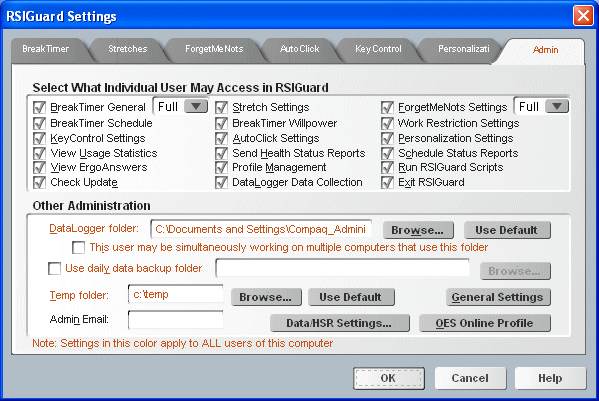
Select What Individual User May Access in RSIGuard
The settings in the section Select What Individual User May Access in
RSIGuard control what features/settings are available to users
(some settings may not be available in some editions of RSIGuard):
- BreakTimer General - A user can access the BreakTimer
settings page only if this is checked. Depending on the value of the
drop-down box, users will have varying ability to disable BreakTimer from
the front panel BreakTimer button.
- Stretch Settings - A user can adjust Stretch-related
settings only if this is checked.
- ForgetMeNots Settings - A user can adjust ForgetMeNots
settings only if this is checked. Depending on the value of the
drop-down box, users will have varying ability to disable ForgetMeNots
from the front panel ForgetMeNots button.
- BreakTimer Schedule - A user can adjust the frequency and duration of
breaks as well as the interruption mode only if this is checked.
- BreakTimer Willpower - A user can adjust willpower (which controls how
the Postpone Break and Skip Break buttons work) only if this is checked.
- Work Restriction Settings - A user can adjust a work restriction only if
this checkbox is checked.
- KeyControl Settings - A user can adjust KeyControl
settings only if this is checked.
- AutoClick Settings - A user can adjust AutoClick settings
only if this is checked.
- Personalization Settings - A user can adjust
Personalization settings only if this is checked.
- View Usage Statistics - A user can access their usage
statistics from RSIGuard only if this is checked (this
does not prevent access directly from UserInsight,
so UserInsight should not be installed if no access
to the data is necessary).
- Send Health Status Reports - Only if this is checked can
a user file a Health Status Report.
- Schedule Status Reports - Only if this is checked can a
user set or modify automatically-scheduled Health Status
Reports.
- View ErgoAnswers - If this is checked, the "View ErgoAnswers" menu item appears in the Help menu.
- Profile Management - Only if this is checked can a user
add/remove profiles or adjust where profiles are stored.
- Run RSIGuard Scripts - If this is checked, the "Run
RSIGuard Scripts" menu item appears in the Tools
menu.
- Check Update - If this is checked, the "Check for Update" menu item appears in the Help menu.
- DataLogger Data Collection - If this item is checked,
RSIGuard collects DataLogger information. If unchecked, no
DataLogger information will be maintained locally or
on a network (use carefully!)
- Exit RSIGuard - If this is checked, the "Exit
RSIGuard" menu item appears in the Tools menu.
|
 |
Other Administration Settings
The DataLogger folder setting determines where the
user's DataLogger data will be stored. It can be any valid
folder, either local or on a network. If the location is on a
network, users can log in anywhere and data will be merged into
the file.
Checking the This user may be simultaneously working...
box will allow BreakTimer to track a user who is moving between
multiple computers running RSIGuard at the same time and time
breaks appropriately. This setting does, however, require
significantly more network communication and so should be used
with care.
Use daily data backup folder defines a folder
(usually on a network) where RSIGuard will back up DataLogger
data at the start of each workday. This option reduces network
communication to negligible quantities (an average of 20K per
user per day) and also simplifies the security management of the
data (users do not need read permission to the backup folder).
The disadvantage is that if as a result the DataLogger folder is
set to the local drive (which is not necessary) then roaming
users's data will not be merged into a single file.
Temporary files folder is a folder in which the user
has permission to read, write, and create and delete files.
RSIGuard uses this location for temporary file purposes.
Administrator's Email Address is an email address for
your staff person who should receive emails RSIGuard may
generate.
General Settings
The General Settings screen lets you view (and configure) several
miscellaneous RSIGuard configuration settings.
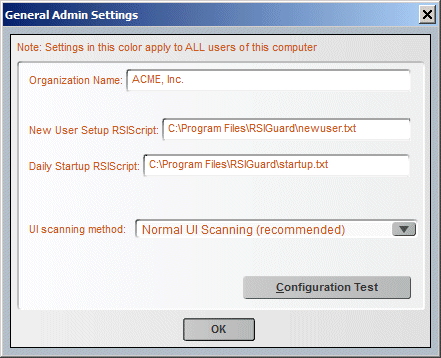
Generally, these settings would be configured as part of an MSI installation
package or automatically by a web registration code downloading a configuration
script. However, if necessary, these settings can be modified here.
The UI scanning method can be changed to the alternate method if RSIGuard
appears to cause your system to lock up. If changing to the alternate method
does not fix the issue, it is almost impossible that RSIGuard
Health Status Report & Data Settings
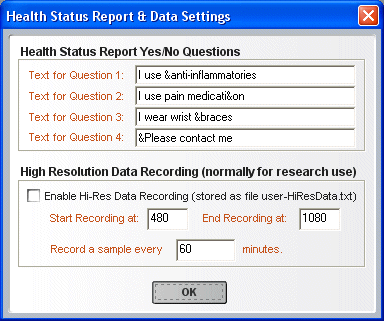
The Health Status Report (HSR) & Data Settings screen lets you set:
- 4 default questions for the Health Status Reports feature. Generally,
these would be configured as part of an MSI installation package.
- Hi resolution data recording. This is normally only used for research
purposes. For more detail, view the Detailed
DataLogger and Health Status Reports Analyses.
OES Online Profile Settings
The OES Online Profile Settings control the connection between the RSIGuard
desktop application and the online Enviance OES system.
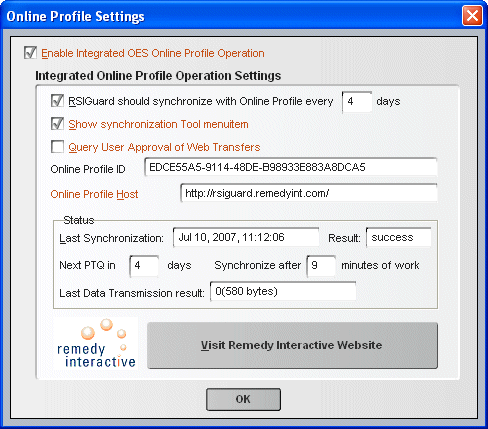
Generally, these settings would be specified in an MSI installation package.
The status section is updated every time RSIGuard synchronizes information with
the online OES system.
For more information about the OES system, please view the
Enviance website or call (415)332-6433.